Installation 
Prerequisites
ADMIN rights to install software. Required to install Docker, and since PipeCraft2 app is not “signed” (for Windows and Linux [ok for MacOS]) then executing this requires also admin rights.
Docker. See OS-specific (Windows, Mac, Linux) docker installation guidelines below.
Why Docker is needed?
Modules of PipeCraft2 are distributed through Docker containers, which will liberate the users from the struggle to install/compile various software for metabarcoding data analyses. Thus, all backend bioinformatics processes are run in Docker containers. Relevant Docker container will be automatically downloaded prior the analysis. See below how to manage and remove Docker images for the system.
Windows
PipeCraft2 was tested on Windows 10 and Windows 11. Older Windows versions do not support PipeCraft GUI workflow through Docker.
Download PipeCraft2 installer for Windows: v1.1.0
Install PipeCraft2 via the setup executable.
False alert
Your OS might warn that PipeCraft2 is dangerous software! Please ignore the warning until this issue is fixed by the developers.
Download Docker for windows - ONLY ONCE (no need, when updating PipeCraft).
Important
Administrator privileges are required during installation. Once installed, Docker on Windows can be run without admin rights.
Warning
In Windows, please keep you working directory path as short as possible. Maximum path length in Windows is 260 characters. PipeCraft may not be able to work with files, that are buried “deep inside” (i.e. the path is too long).
Note
Resource limits for Docker are managed by Windows; but you can configure limits in a .wslconfig file, but this can be automatically done via PipeCraft GUI, see Manage resources allocated to Docker. Default = 50% of total memory on Windows or 8GB, whichever is less. 80% of total memory on Windows on builds before 20175 (Win10, from 2020).
Quick guide to increase Docker accessible RAM size in Windows:
This is a legacy guide; please use the PipeCraft GUI to manage Docker resources, see Manage resources allocated to Docker.
Instructions from https://learn.microsoft.com/en-us/windows/wsl/wsl-config#wslconfig
This is for Windows Build 19041 and later with WSL 2
Open ‘File Explorer’ and type %USERPROFILE% to the address bar to access the %USERPROFILE% directory (generally e.g. “C:Usersmy_user_name”).
Make new text (txt) document into %USERPROFILE% directory.
Paste the following text to that new txt document:
 # Settings apply across all Linux distros running on WSL 2
 [wsl2]

 # Limits VM memory to use no more than X GB, this can be set as whole numbers using GB or MB
 memory=30GB

 # Sets the VM to use X virtual processors
 processors=8
Edit “memory=30GB” and “processors=8” according to your needs
Save the file and rename this as .wslconfig
Restart Docker.
MacOS
PipeCraft2 is supported on macOS 10.15+. Older OS versions might not support PipeCraft GUI workflow through Docker.
Note
If your MacOS has M1/M2 chips, please let us know if you encounter something weird while trying to run some analyses (contact or post an issue on the github page).
Check your Mac chip (Apple or Intel) and download either PipeCraft for Apple or Inter chip:
Apple chip version, pipecraft v1.1.0
Intel chip version, pipecraft v1.1.0
Install PipeCraft2 via downloaded dmg file by double-clicking on the file and dragging the app to the Applications folder.
Check your Mac chip (Apple or Intel) and download Docker for Mac - ONLY ONCE (no need, when updating PipeCraft)
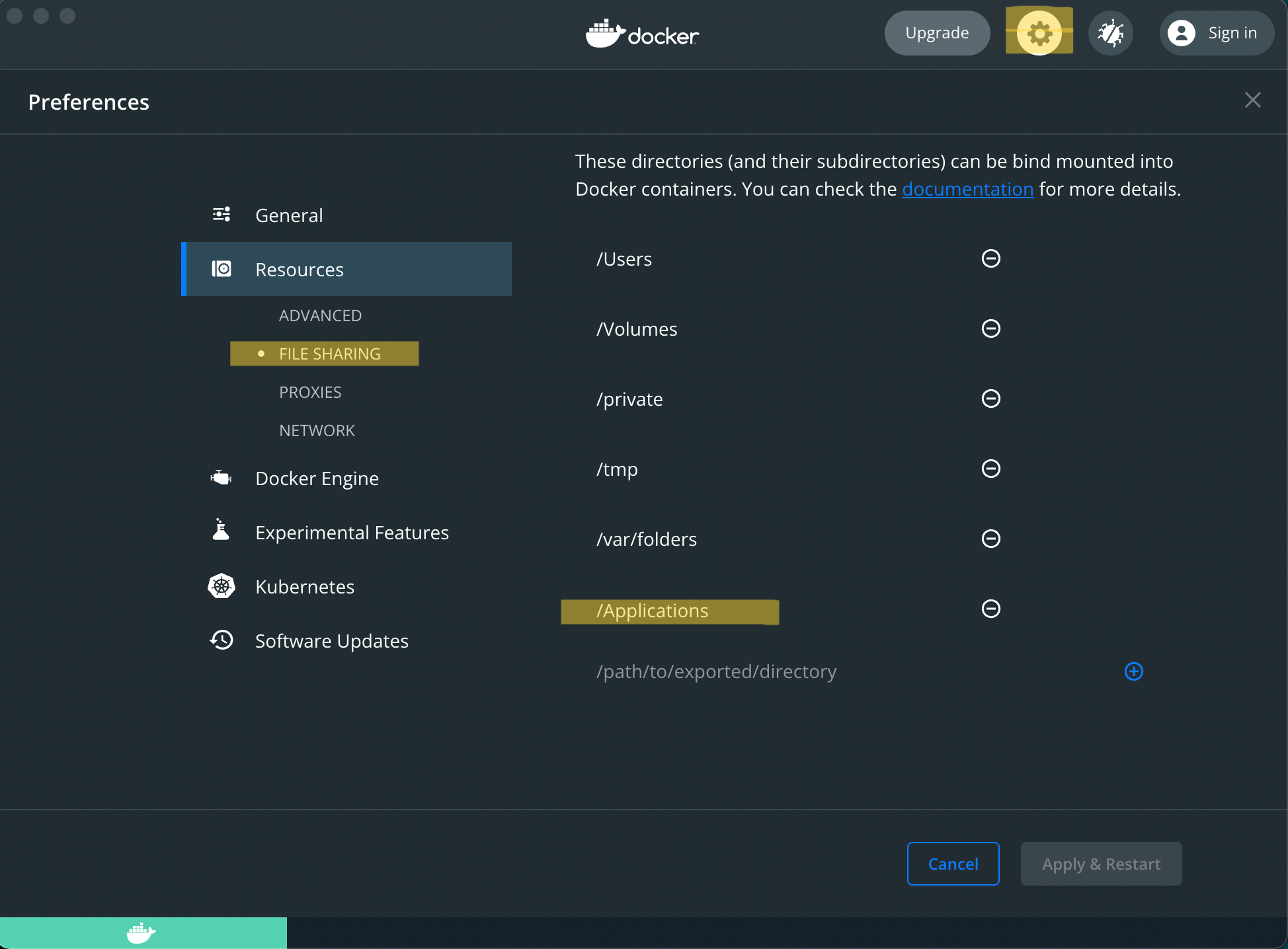
Open Docker dashboard: Settings -> Resources -> File Sharing; and add the directory where pipecraft.app was installed (it is usually /Appications)
Note
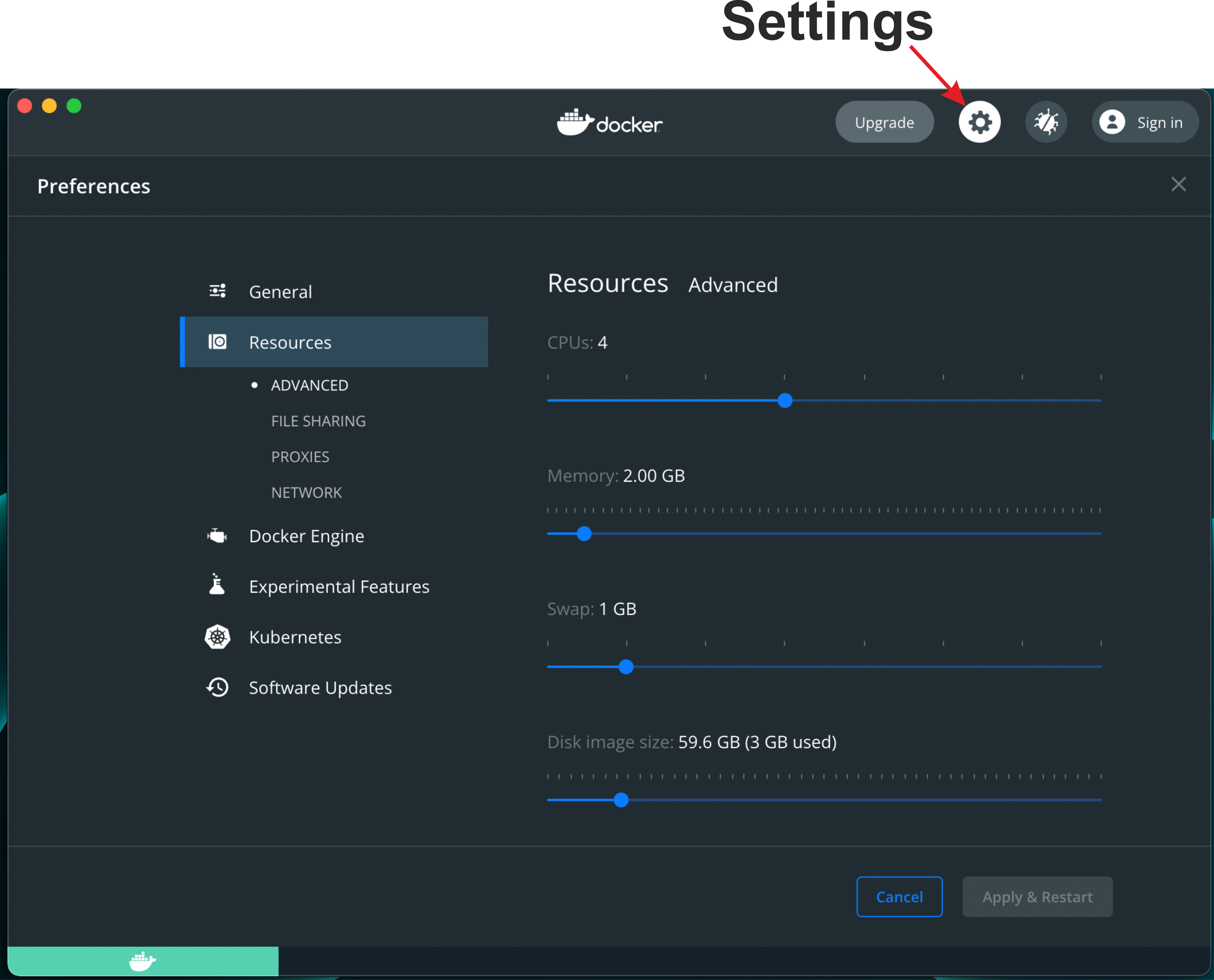
Manage Docker resource limits in the Docker dashboard or Resource Manager in PipeCraft GUI.
Linux
PipeCraft2 was tested with Ubuntu 20.04 and Mint 20.1. Older OS versions might not support PipeCraft GUI workflow through Docker.
Download PipeCraft2 for Linux: v1.1.0
Right click on the pipecraft_*.deb file and “Open With GDebi Package Installer” (Install Package) or
sudo dpkg -i path_to_deb_fileInstall Docker - ONLY ONCE (no need, when updating PipeCraft); follow the guidelines under appropriate Linux distribution
Warning
When installing Docker Engine, make sure you have not Docker Desktop already installed!Installing both might have interfering consequences
If you are a non-root user complete these post-install steps
Note
When you encounter ERROR during PipeCraft2 installation, then uninstall the previous version of PipeCraft2 sudo dpkg --remove pipecraft-v0.1.3
Run PipeCraft2. If PipeCraft shortcut does not appear on the Desktop, then search the app and generate shortcut manually (installed in /opt/pipecraft directory)
Note
On Linux, Docker can use all available host resources.
Updating PipeCraft2
See removing docker images section.
Warning
Uninstalling PipeCraft2
sudo dpkg --remove pipecraftManage resources allocated to Docker
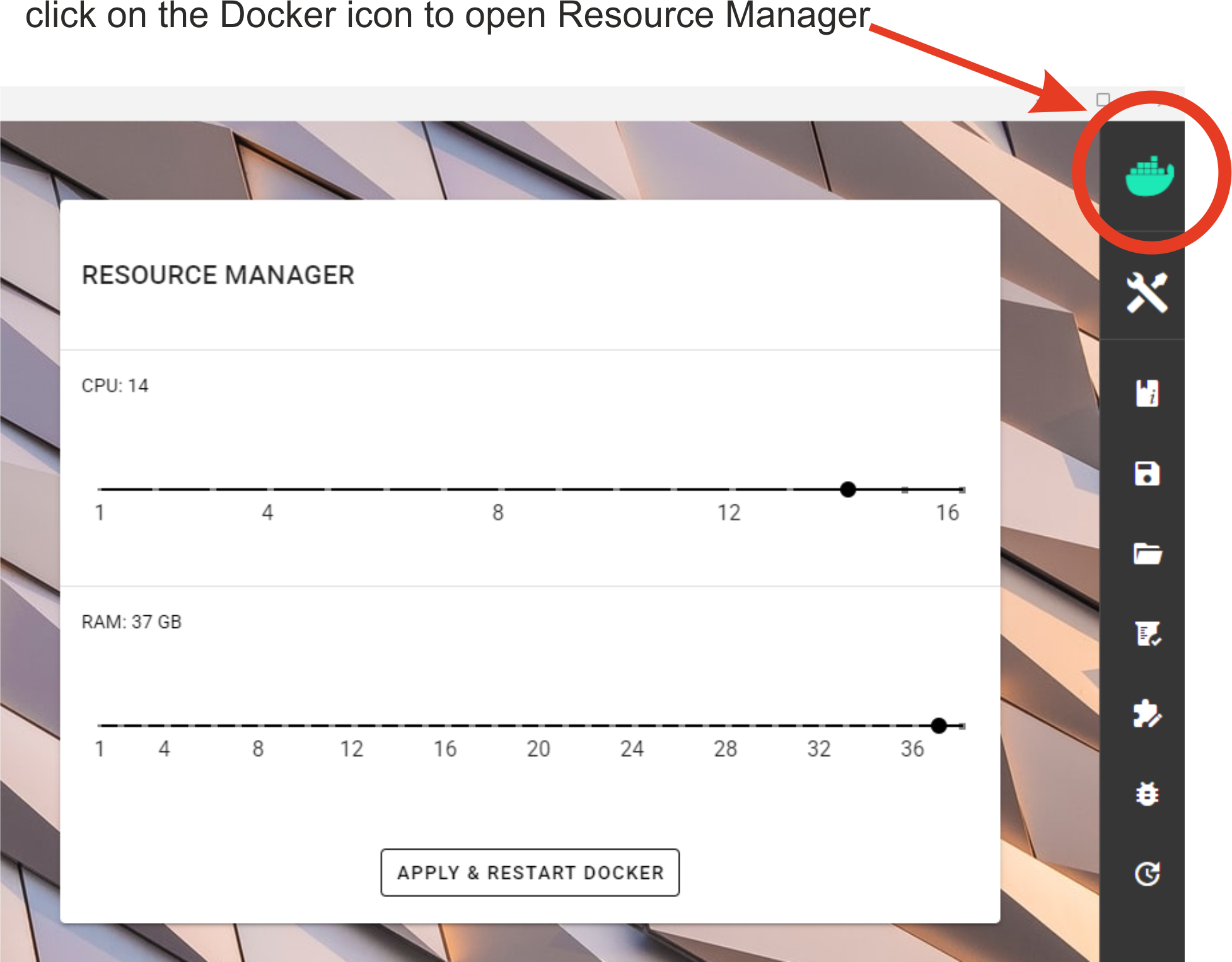
Resource management in PipeCraft2 allows to control and limit the
resources (such as number of CPUs, RAM) that Dockercontainers can use.
You can control these settings also easily through PipeCraft GUI, by clicking on the Docker icon in the top-right corner of the
PipeCraft window. After editing, press the APPLY & RESTART DOCKER button, so that the changes would take effect.
Docker engine must be running (the icon must be green) in order to apply the changes.
Required amont of allocated resources depends generally on the input data size and the complexity of the analysis. If too few RAM is allocated, then the analysis may fail without any informative ERROR message. If too few CPU cores are allocated, then the analysis may be very slow. The more the merrier, but when allocating most of your computer’s resources, please keep in mind that there will be fewer resources available for other processes on your computer.
Purging ‘old’ Docker installations
sudo apt-get purge docker-ce docker-ce-cli containerd.io docker-buildx-plugin docker-compose-plugin docker-ce-rootless-extras
    rm -r $HOME/.docker/desktop
    sudo rm /usr/local/bin/com.docker.cli
    sudo apt purge docker-desktop
Removing Docker images
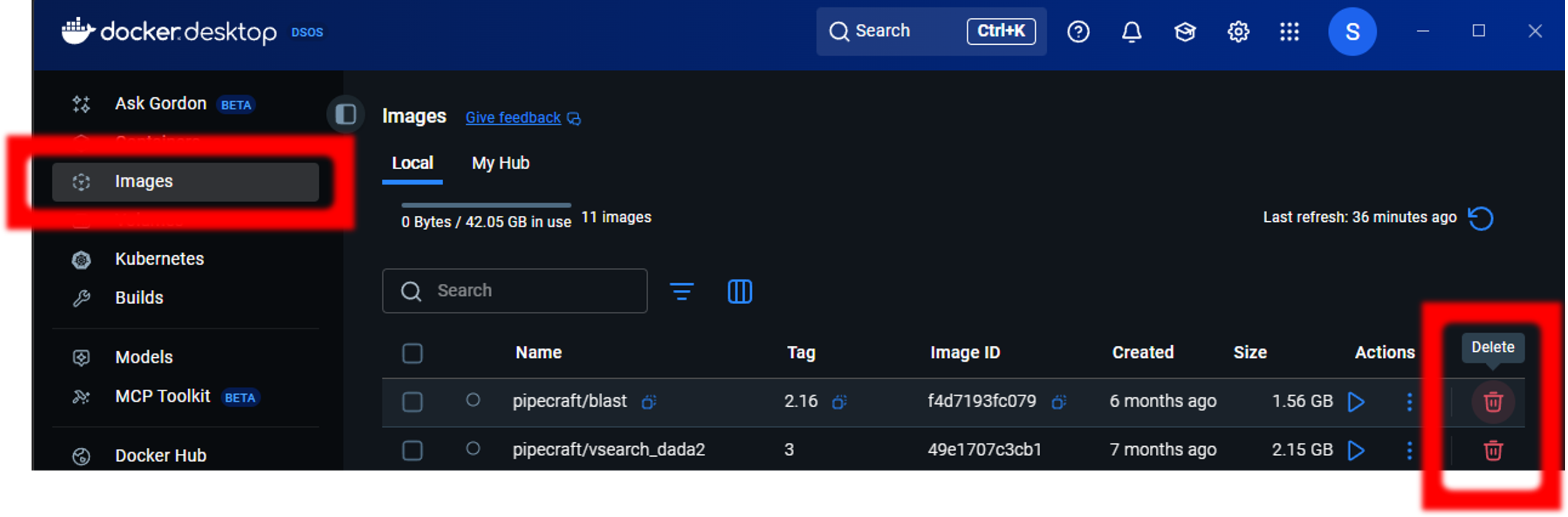
sudo docker images –> to see which docker images existsudo docker rmi IMAGE_ID –> to delete selected imageor
sudo docker system prune -a –> to delete all unused containers, networks, imagessudo docker images –> check if images were removed