Troubleshooting 
This page is developing based on the user feedback.
Debugging mode
Turn on ‘debugging mode’ (bottom-right button) to keep temporary (log) files for identifying the cause of the error

General errors
“rm: cannot remove … File is not accessible”
Possible reason: The file is being used by another process OR Docker does not have permissions to delete the file(s).
Fix: Close all other applications that might be using the file / Delete the file manually when attempting to rerun the workflow.
BBmap error in metaMATE (memory error)
if a reference database (reference seqs) is very large, then the process may require a lot of RAM.
If you receive an error message “.ERROR: BBMap alignment produced no matches and a memory error was detected”,
then you may need to increase the memory (RAM) allocated to Docker and or close other applications that are using a lot of RAM.
No files in the output folder, but PipeCraft said “Workflow finished”
Possible reason: Computer’s memory (RAM) is full, and process was killed. Cannot finish the analyses with those local resources.
Possible fix: In Windows, try to increase the RAM size accessible to Docker (see here). Check if there was a README.txt output and read that. Please report unexpexted errors.
No OTU_table.txt with version v0.1.4
Possible reason: known bug.
Fix: Fixed the bug. Reinstall PipeCraft v0.1.4 (or higher)
“ERROR]: cannot find files with specified extension”
Possible reason: wrongly specified working directory or extension; OR issues with external hard drives in Windows.
Fix: Double-check the specified directory and extention; OR restart Docker engine.
Workflow stopped
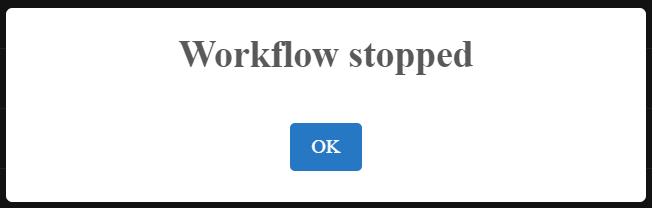
Possible reason: Computer’s memory (RAM) is full, and process was killed. Cannot finish the analyses with those local resources.
Possible fix: In Windows, try to increase the RAM size accessible to Docker (see here).
Error in DADA2 quality filtering (filterAndTrim)
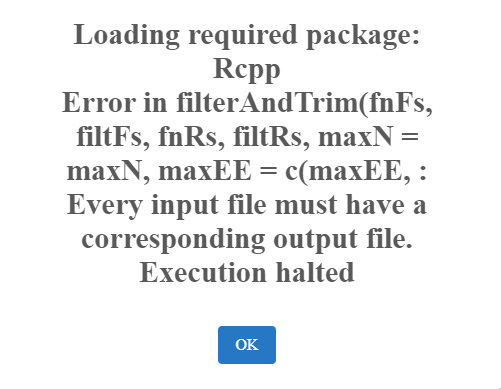
Possible reason: wrong read identifiers for read R1 and read R2 in QUALITY FILTERING panel.
Fix: Check the input fastq file names and edit the identifiers. Specify identifyer string that is common for all R1 reads (e.g. when all R1 files have ‘.R1’ string, then enter ‘\.R1’. Note that backslash is only needed to escape dot regex; e.g. when all R1 files have ‘_R1’ string, then enter ‘_R1’.).
“Error rates could not be estimated (this is usually because of very few reads). Error in getErrors(err, enforce = TRUE) : Error matrix is null.”
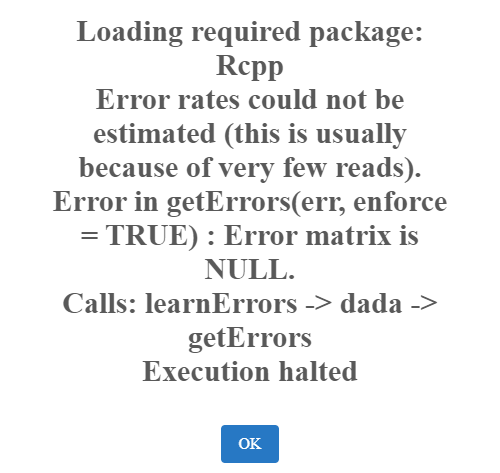
Possible reason: Too small data set; samples contain too few reads for DADA2 denoising.
Fix: use OTU workflow.
Error
Conflict. The container name XXX is already in use by container “XXX”. You have to remove (or rename) that container to be able to reuse that name.
Reason: Process stopped unexpectedly and docker container was not closed.
Fix: Remove the docker container (not image!) that is causing the conflict
Known bugs
UNOISE: chimeric sequences are removed from the zOTUs but not from the zOTUs table. Fixed in v1.1.0
QualityCheck module: multiQC does not merge fastqc reports into a single multiqc_report.html file. Fixed in v1.1.0
Demultiplexing with dual indexes in v1.1.0 only: samples names are eg indexF_1-indexR_1.fastq.gz. Fixed in v1.2.0
Icon are missing, noted in v1.1.0. Try closing the GUI and opening it again to re-load the icons. Fixed in v1.2.0